April 9, 2014
Part 1: Features of the Chrome App - Embedding
In my previous post, I introduced my OSG Chrome App. In this post, I want to introduce one feature of the chrome app, Embedding profiles.<div></div><div>Part of my morning routine is checking multiple websites for the status of the resources at Nebraska. For example, I check our dashboard page that I’ve written about before. And I check the HCC GlideinWMS status page.The HCC GlideinWMS status page shows only the monitoring information. In order to see any accounting data, I have to navigate to the GratiaWeb site and filter for hcc usage. Instead I want to view the accounting data on the same page as I am viewing GlideinWMS status. And so I added the ability to Embed a set of graphs using the Chrome App.<h3>Creating a HCC GlideinWMS Profile</h3><div>First, I need to create a glideinwms profile for hcc. I have 2 questions that I want answered, who is running, and where are they running. In this case, I am playing the role of a VO Manager. I want to see usage filtered by VO, specifically my VO, HCC. The VO Manager role gives me 2 graphs by default, total usage per VO, and where the VO is running. But it doesn’t include what users are running in my VO. Therefore, I want to add a new graph, the Glidein (since HCC uses GlideinWMS) per user graph, which is on gratiaweb.</div><div></div><div>To add a graph, I followed the documentation to add the Glidein per user graph. I copied and pasted the graph URL into the box, and it added the graph to my list.</div><table align="center" cellpadding="0" cellspacing="0" class="tr-caption-container" style="margin-left: auto; margin-right: auto; text-align: center;"><tbody><tr><td style="text-align: center;"></td></tr><tr><td class="tr-caption" style="text-align: center;">HCC Usage with new graph. Not much usage…</td></tr></tbody></table><div></div><h3>Embedding the Profile</h3>Now that I have the profile showing the data I want to see, I want to embed this data in my webpage. I followed the documentation again, for sharing the graphs and embedding it.I clicked the green share button at the top, and entered the name and description of the profile. Then I submitted the profile for sharing. It returned an embed link that I can use on the webpage.<table align="center" cellpadding="0" cellspacing="0" class="tr-caption-container" style="margin-left: auto; margin-right: auto; text-align: center;"><tbody><tr><td style="text-align: center;"></td></tr><tr><td class="tr-caption" style="text-align: center;">Share profile showing embed URL</td></tr></tbody></table>Once I have this embed URL, I can copy / paste that HTML into the HCC GlideinWMS page and it will show HCC data every time I visit.<table align="center" cellpadding="0" cellspacing="0" class="tr-caption-container" style="margin-left: auto; margin-right: auto; text-align: center;"><tbody><tr><td style="text-align: center;"></td></tr><tr><td class="tr-caption" style="text-align: center;">HCC Usage embedded on our own website</td></tr></tbody></table>And that’s it.<h3>Links</h3><div><ul><li>Chrome Web Store</li><li>OSG Usage App Documentation</li><li>Source</li></ul></div></div>
In my previous post, I introduced my OSG Chrome App. In this post, I want to introduce one feature of the chrome app, Embedding profiles.
The HCC GlideinWMS status page shows only the monitoring information. In order to see any accounting data, I have to navigate to the GratiaWeb site and filter for hcc usage. Instead I want to view the accounting data on the same page as I am viewing GlideinWMS status. And so I added the ability to Embed a set of graphs using the Chrome App.
Creating a HCC GlideinWMS Profile
 |
| HCC Usage with new graph. Not much usage... |
Embedding the Profile
Now that I have the profile showing the data I want to see, I want to embed this data in my webpage. I followed the documentation again, for sharing the graphs and embedding it.I clicked the green share button at the top, and entered the name and description of the profile. Then I submitted the profile for sharing. It returned an embed link that I can use on the webpage.
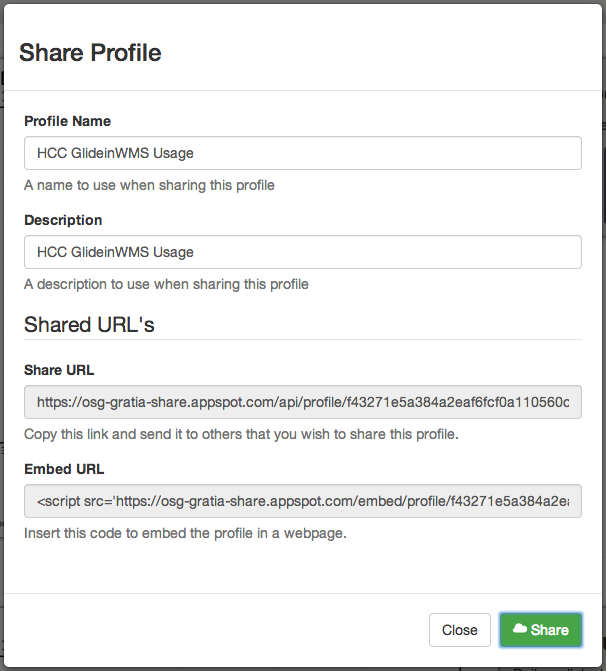 |
| Share profile showing embed URL |
Once I have this embed URL, I can copy / paste that HTML into the HCC GlideinWMS page and it will show HCC data every time I visit.
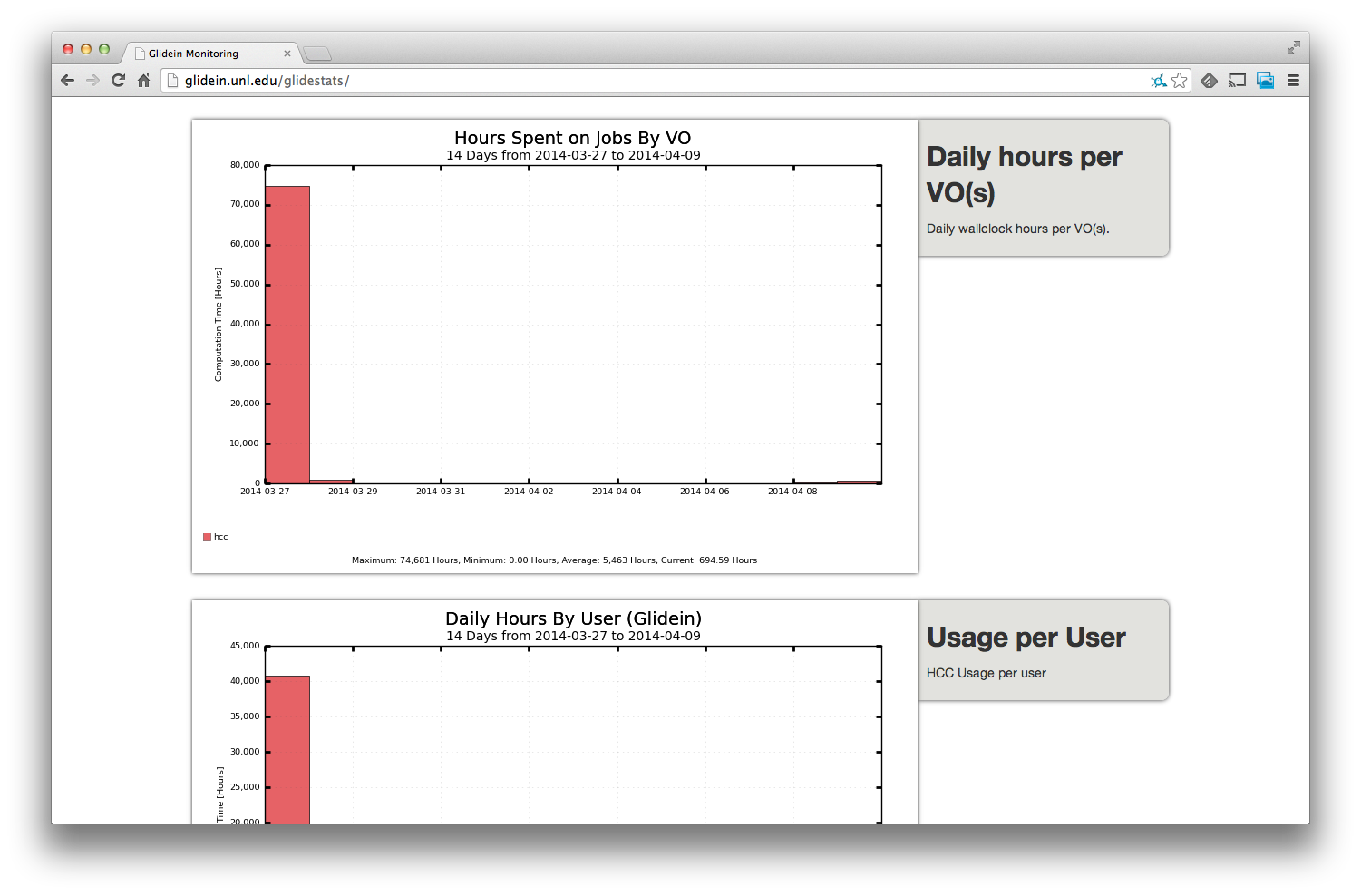 |
| HCC Usage embedded on our own website |
And that's it.